Dining room floor plan
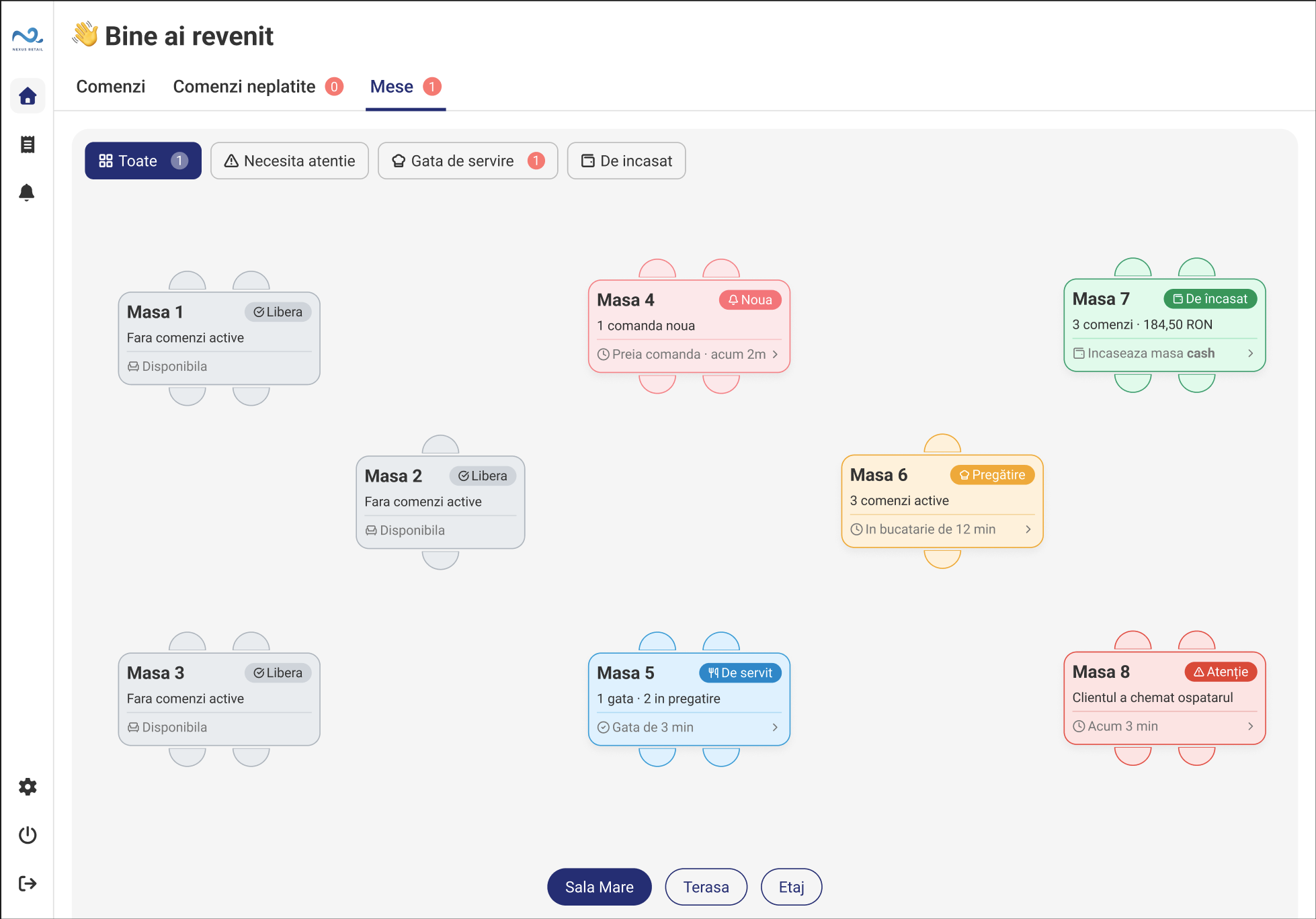
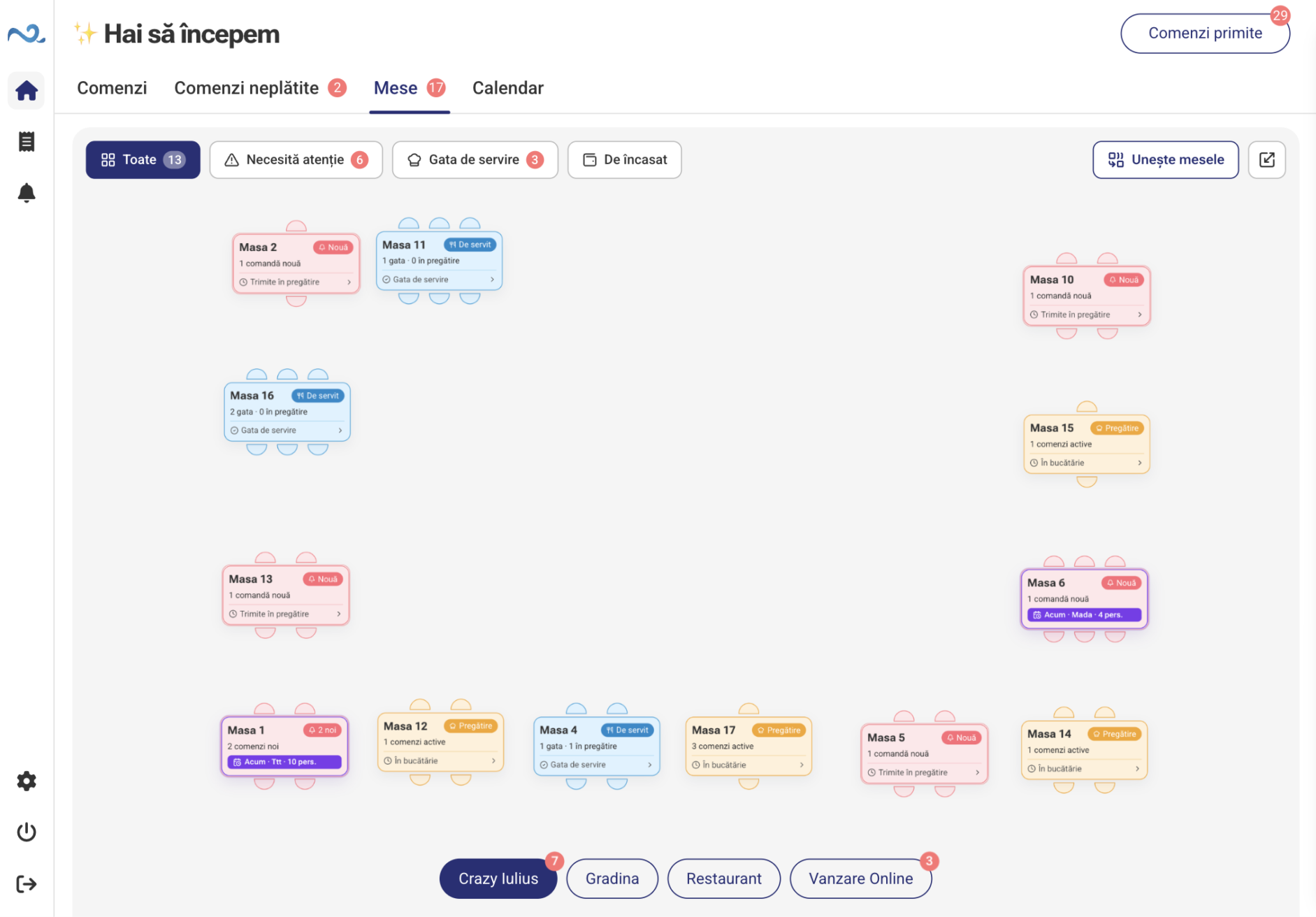
Choose the room and locate tables on the floor plan. Pan and zoom to work comfortably on your device.
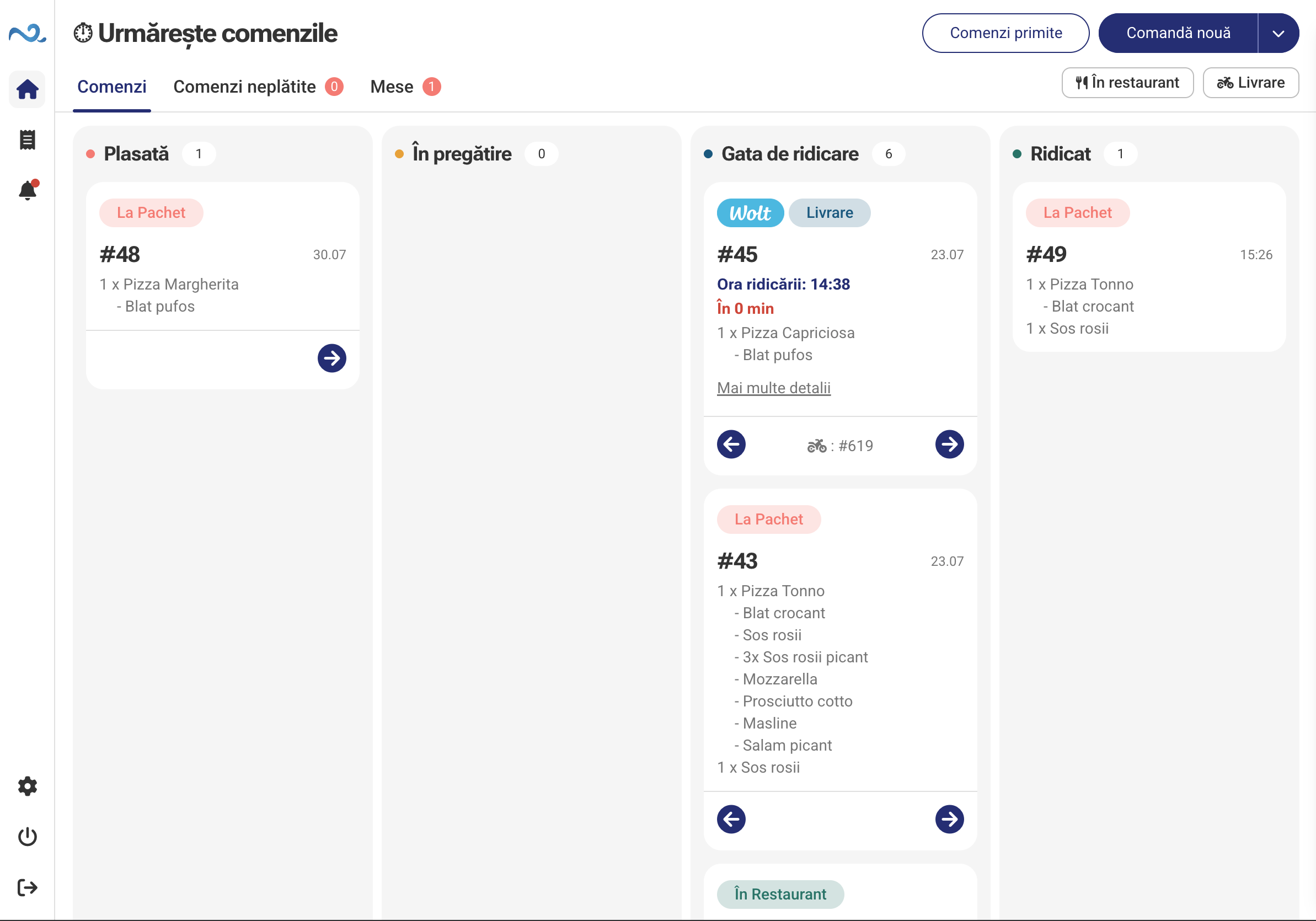
The Restaurant module in POS & Orders puts the floor plan at the centre of daily work. See table states, open orders and continue service or payment from the right place.
Key capabilities
Choose the room and locate tables on the floor plan. Pan and zoom to work comfortably on your device.
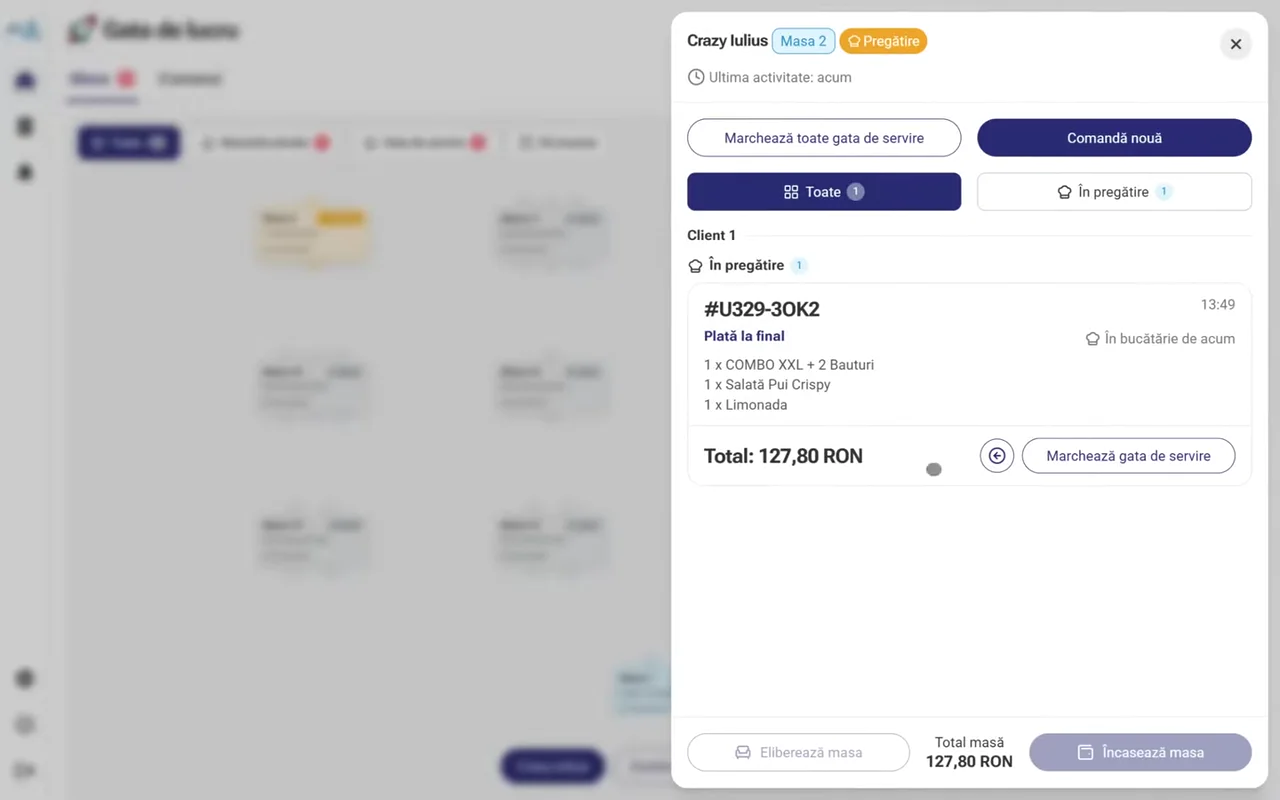
Filter tables by status: free, new orders, in preparation, ready to serve, awaiting payment or needs attention.
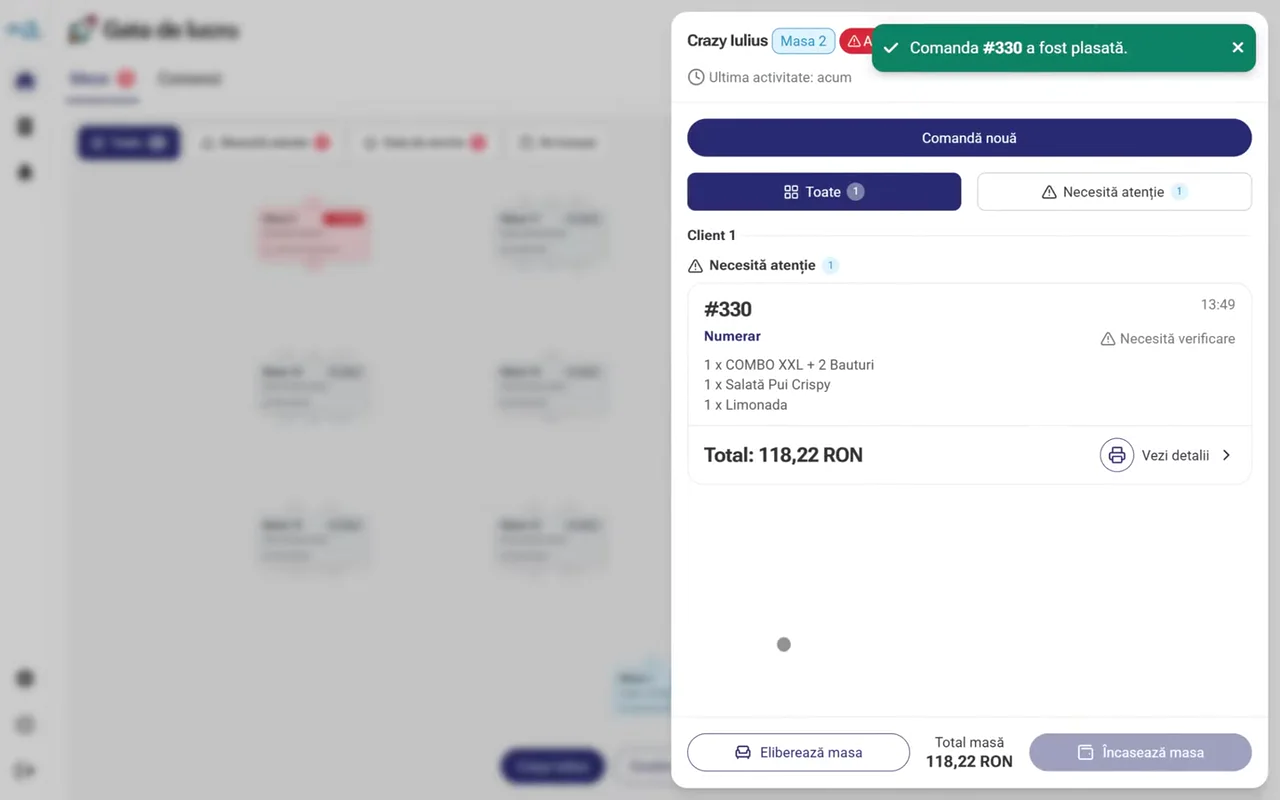
Open a table to see its orders, items ready to serve and customer requests. Available actions reflect the current status.
From table to order
Orders opened from Restaurant remain linked to the table and room. The team can add items and continue payment while the floor plan reflects activity in the venue.
How It Works
The team starts from the floor plan and works with each table's information.
Open the room's floor plan and select a table. Filters help find tables that need attention.
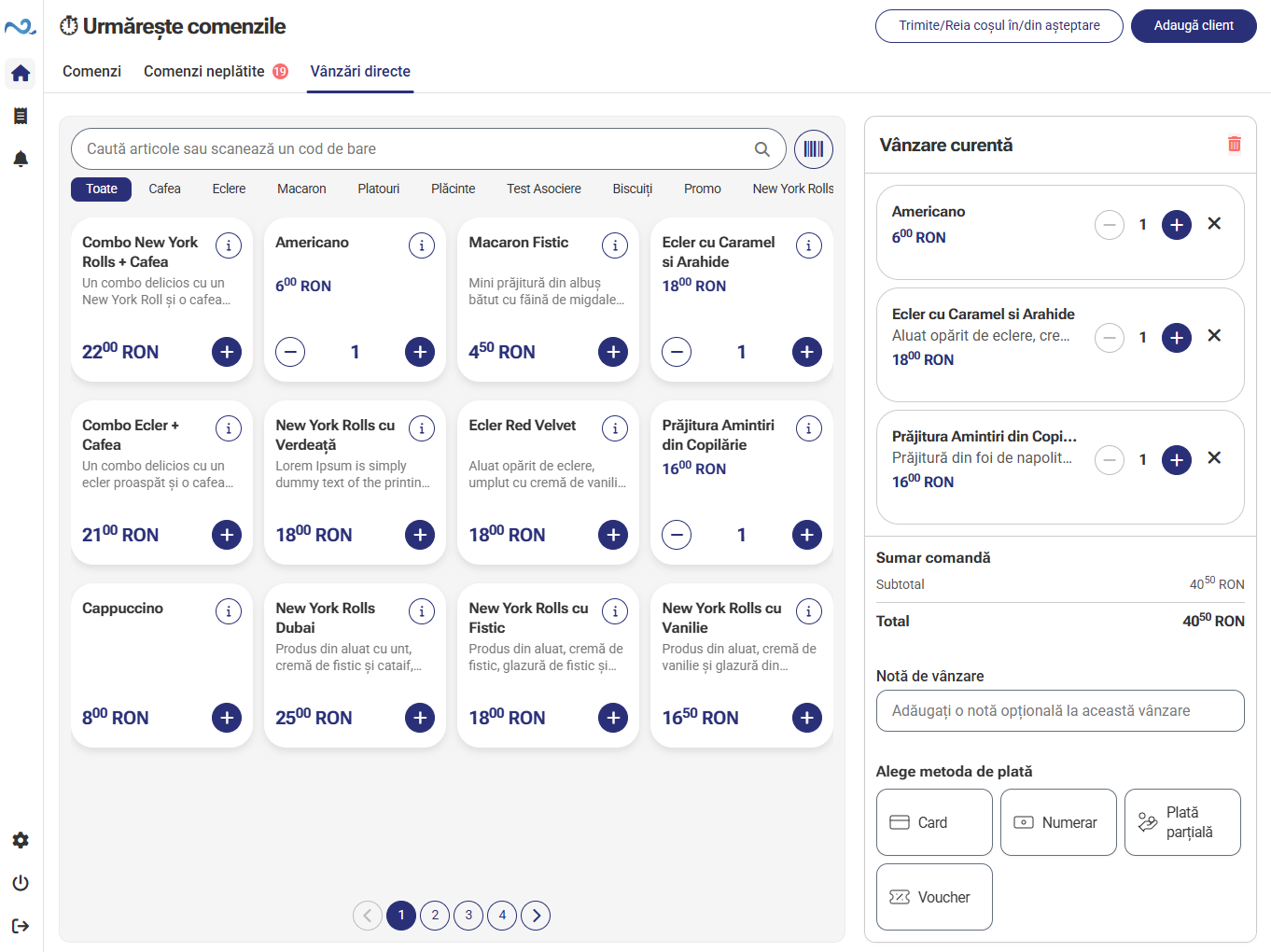
Add the customer's products and options while keeping the order linked to the table.
Check orders in preparation, ready items and table requests in the same view.
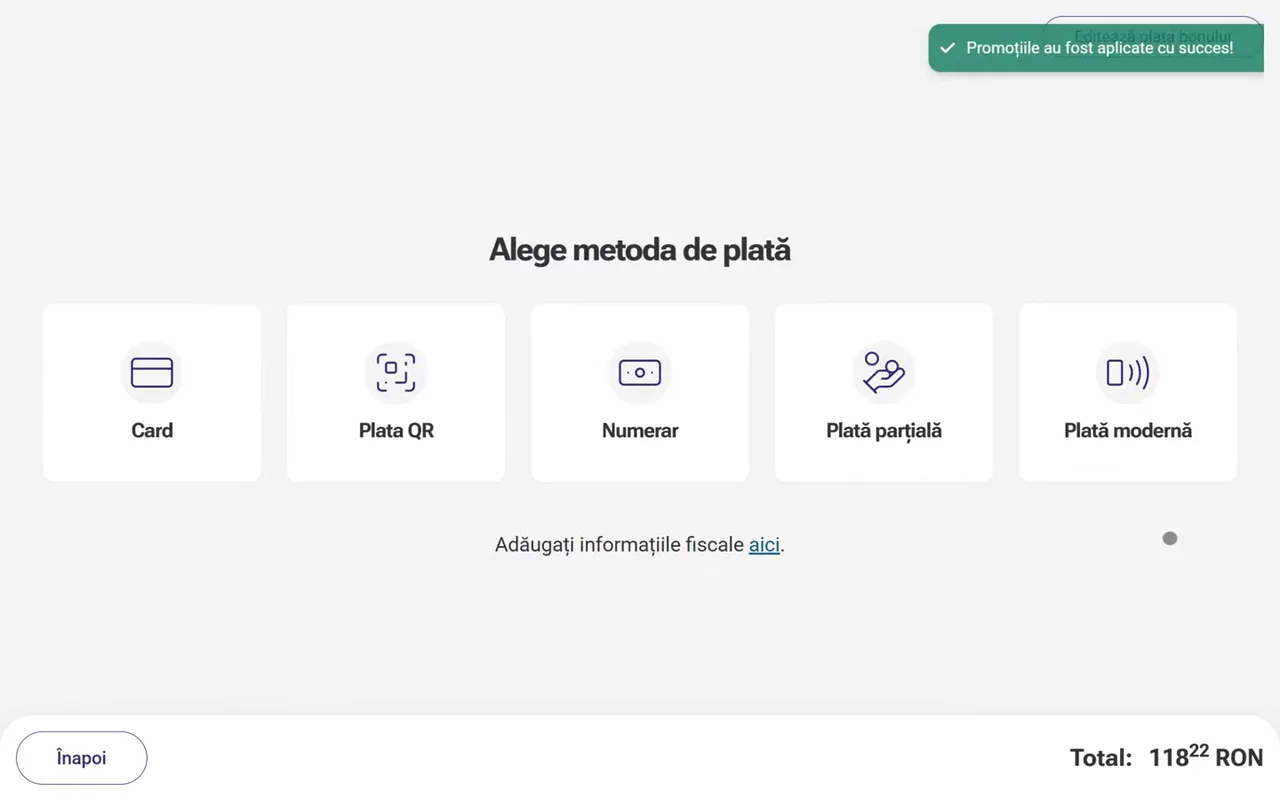
Open payment from the table, choose a payment method and add a tip if the guest wishes. The table’s status updates according to the remaining orders and payments.
Restaurant + Calendar
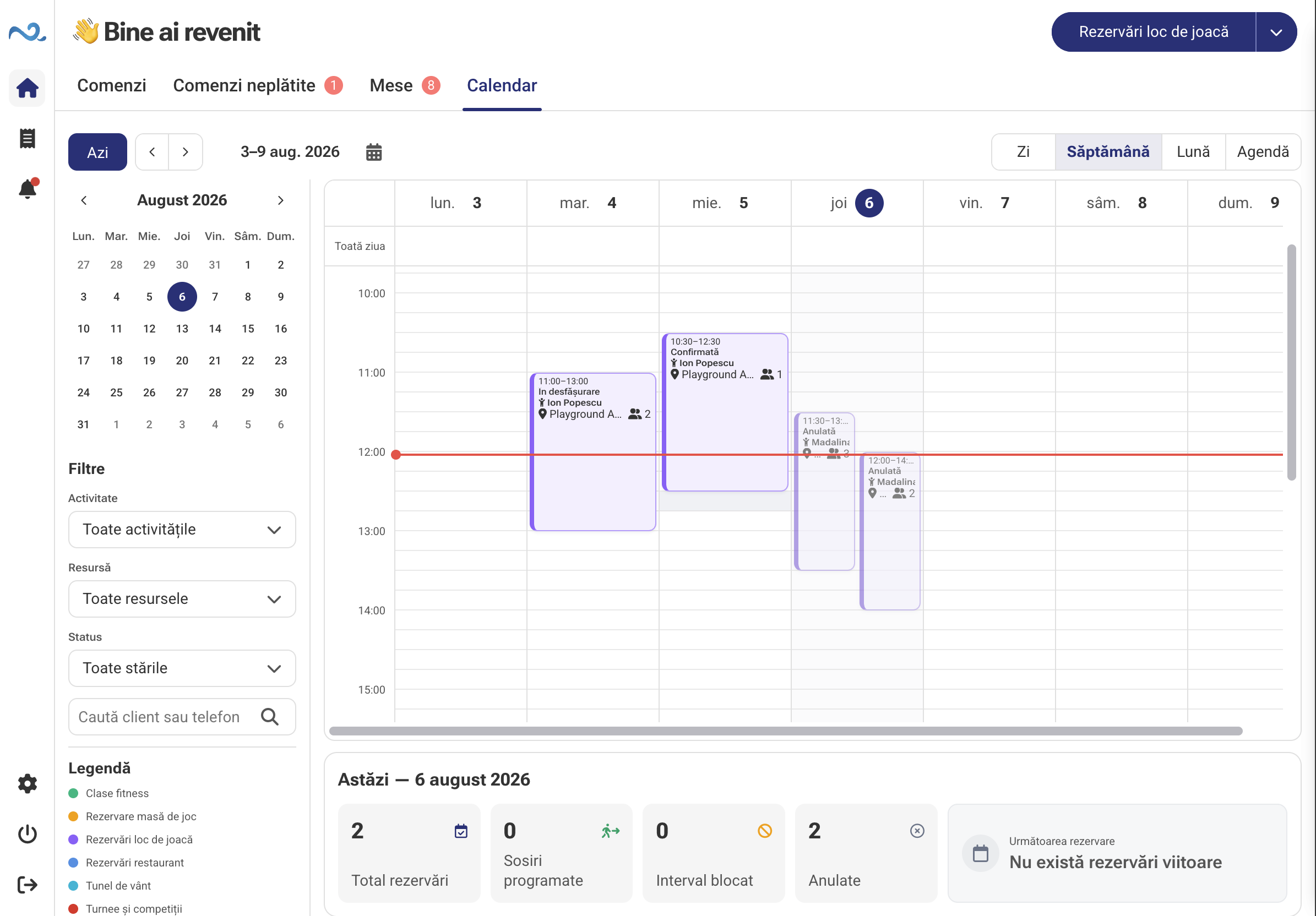
Restaurant connects with Calendar in POS & Orders. Create reservations directly from the floor plan and track online requests in the same calendar.
Part of POS & Orders
Rooms and tables are configured in the administration app. With QR ordering and Kitchen Display (KDS), information reaches the same system used by the team.
POS & Orders FAQ
No. It is a view within POS & Orders for working with rooms, tables and their orders.
Yes. Select a room configured for the location and work with its floor plan and tables.
Yes, for eligible orders and within the operator's permissions. Availability depends on the order state and the chosen operation.
Yes, when the table-ordering workflow is configured. Customers order on their phones and the team tracks the order in Nexus Retail.
POS & Orders
In a demo, we show you the floor plan, orders and payments configured for the way your venue works.