Orders arrive in one place
Receive orders from Kiosk, the mobile app, the website and active integrations. Staff can also enter orders manually.
Track active orders and collect outstanding amounts through two connected views in POS & Orders: Orders and Unpaid orders.
Key capabilities
Receive orders from Kiosk, the mobile app, the website and active integrations. Staff can also enter orders manually.
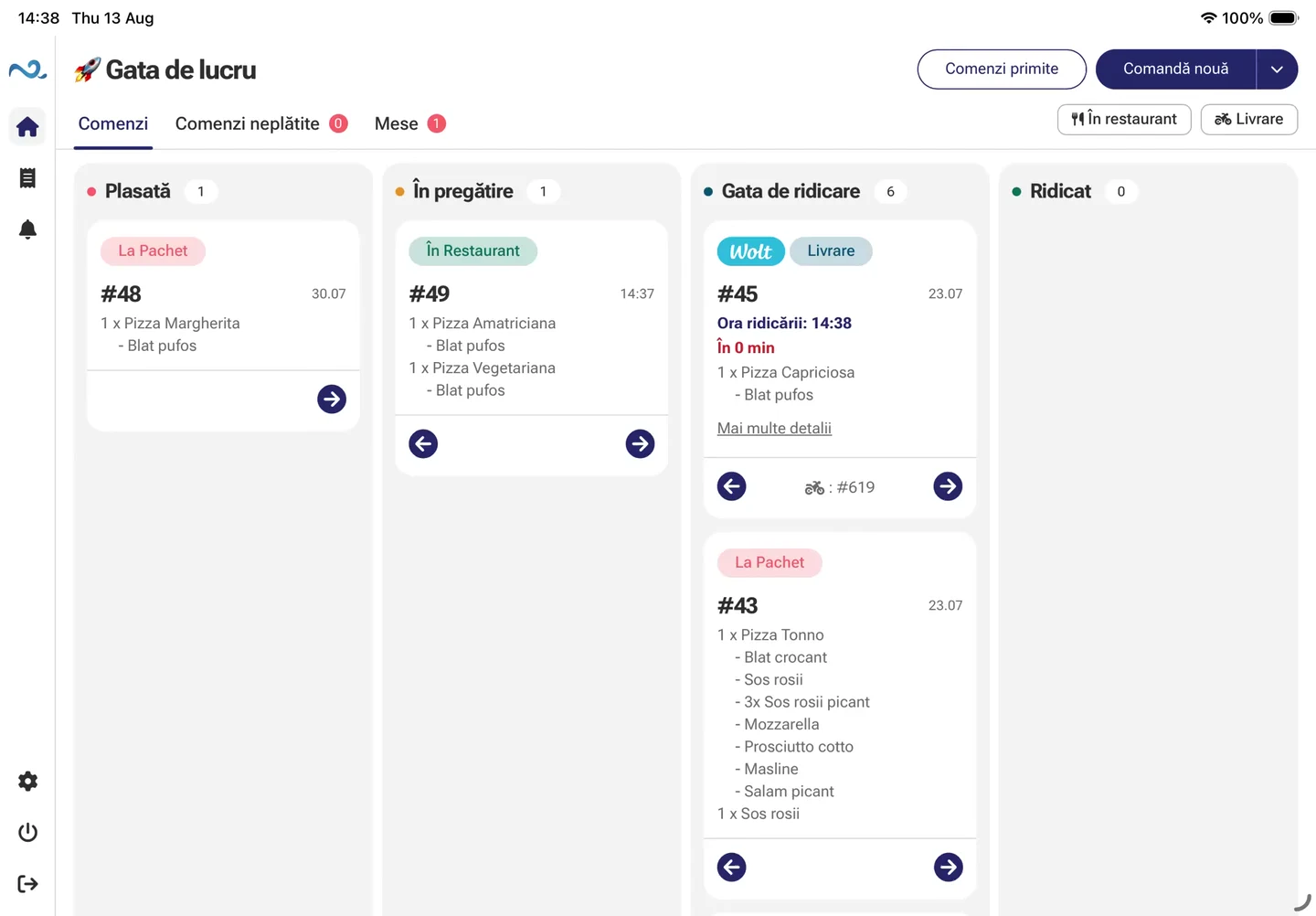
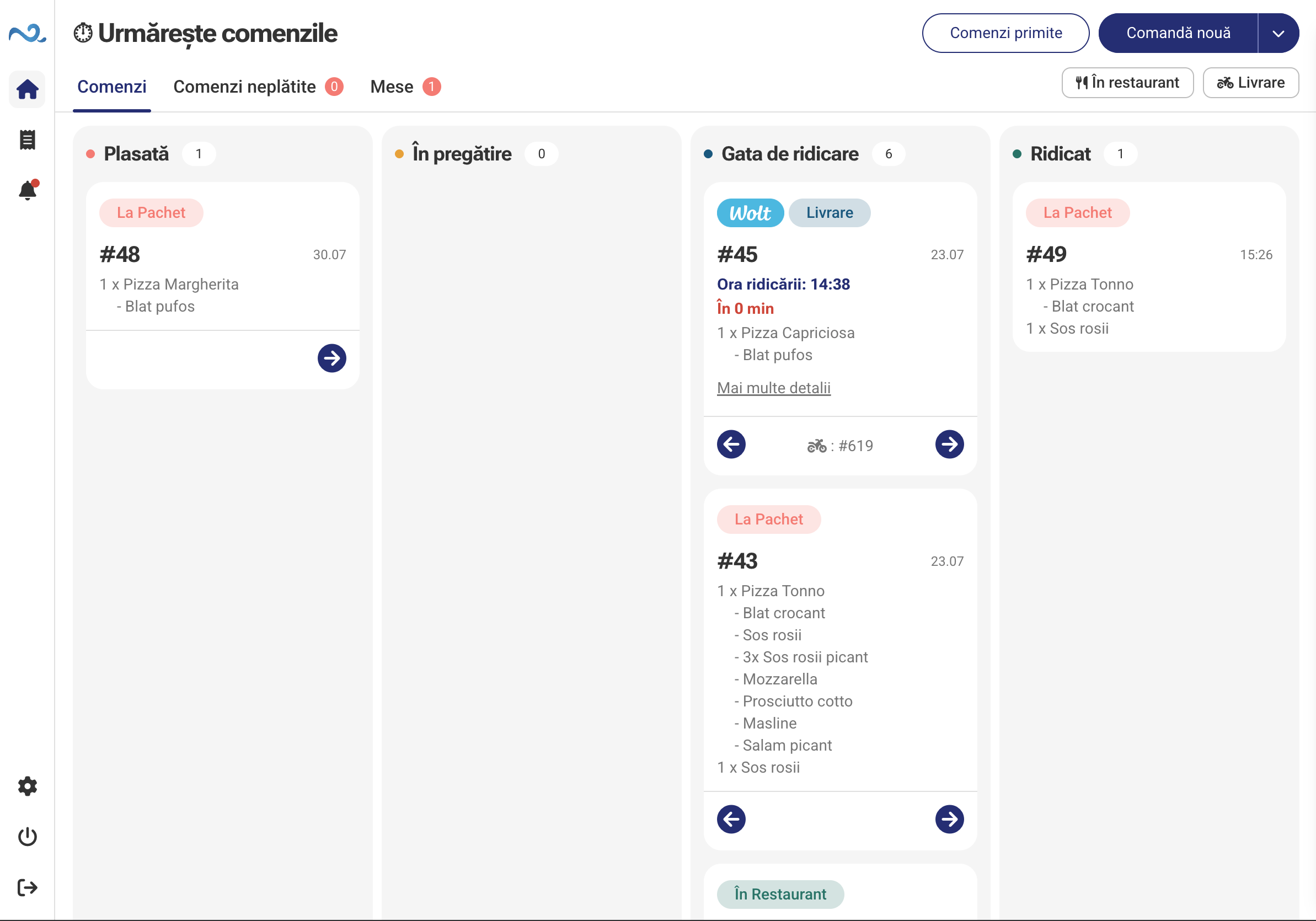
Orders are grouped into Placed, In preparation, Ready for pickup and Picked up. The team sees what comes next and updates each status.
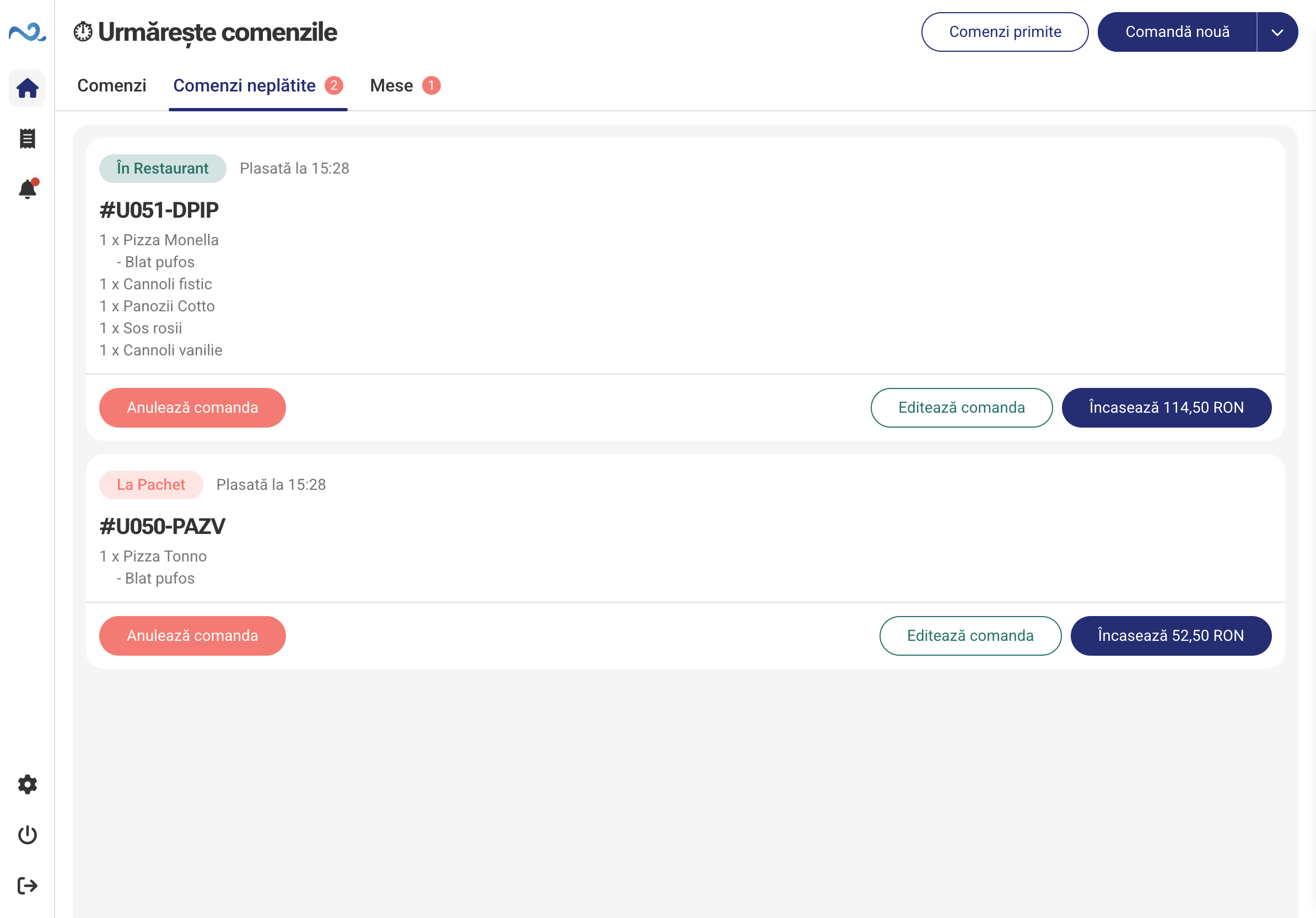
Unpaid orders lists orders that have not been paid in full, the remaining balance and payment history.
Unpaid orders
Unpaid orders includes orders placed at the Kiosk with pay at counter selected, as well as mobile app orders that have not been paid in full. Staff open them in POS & Orders and collect the remaining amount.
How It Works
Start in Unpaid orders, adjust the order if needed and collect payment. Then track preparation in Orders.
In Unpaid orders, find Kiosk orders with payment at the counter and unpaid online orders. Choose the order to collect payment for.
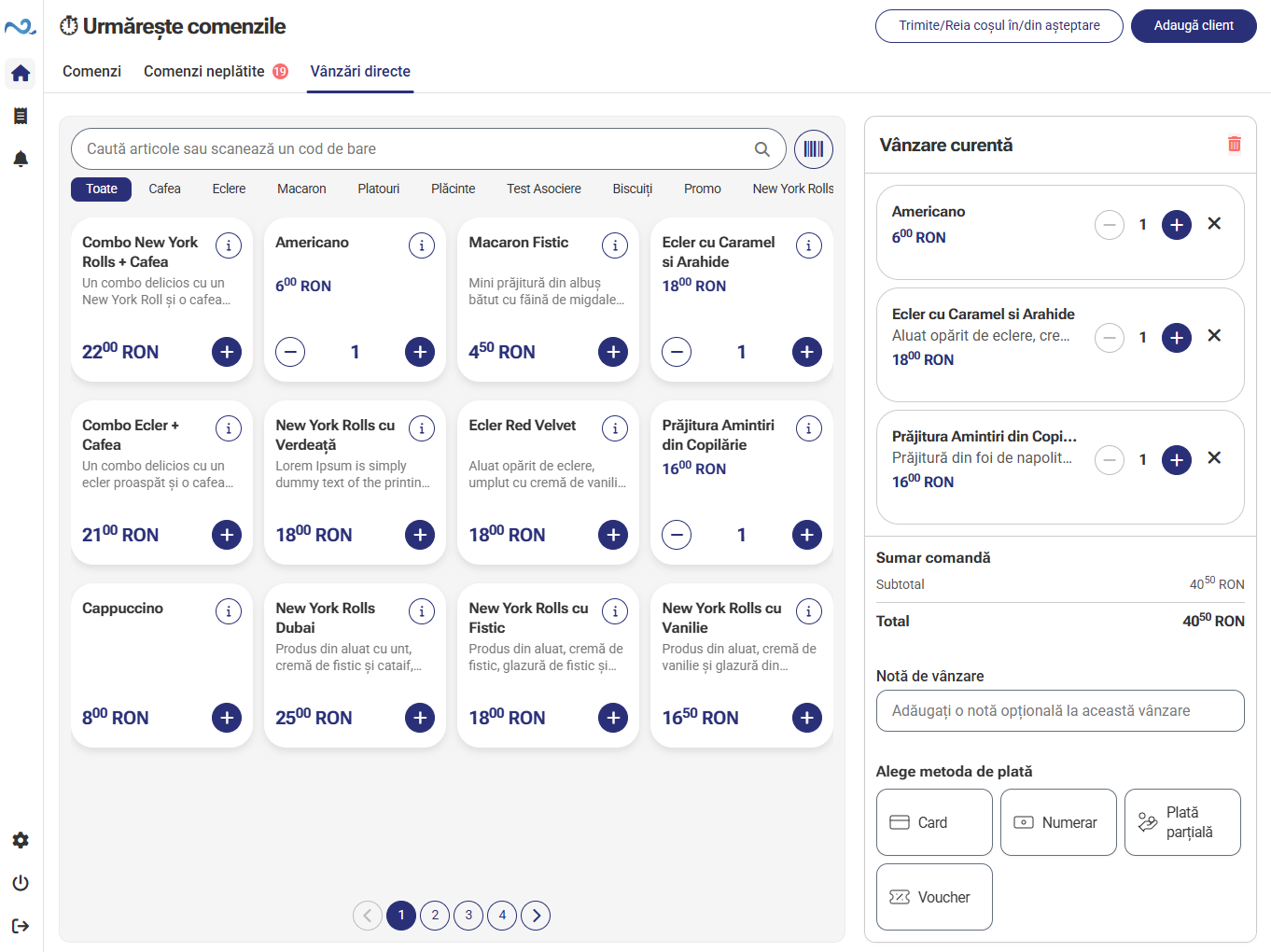
Use Edit order to check products and quantities, make the requested changes and continue to payment.
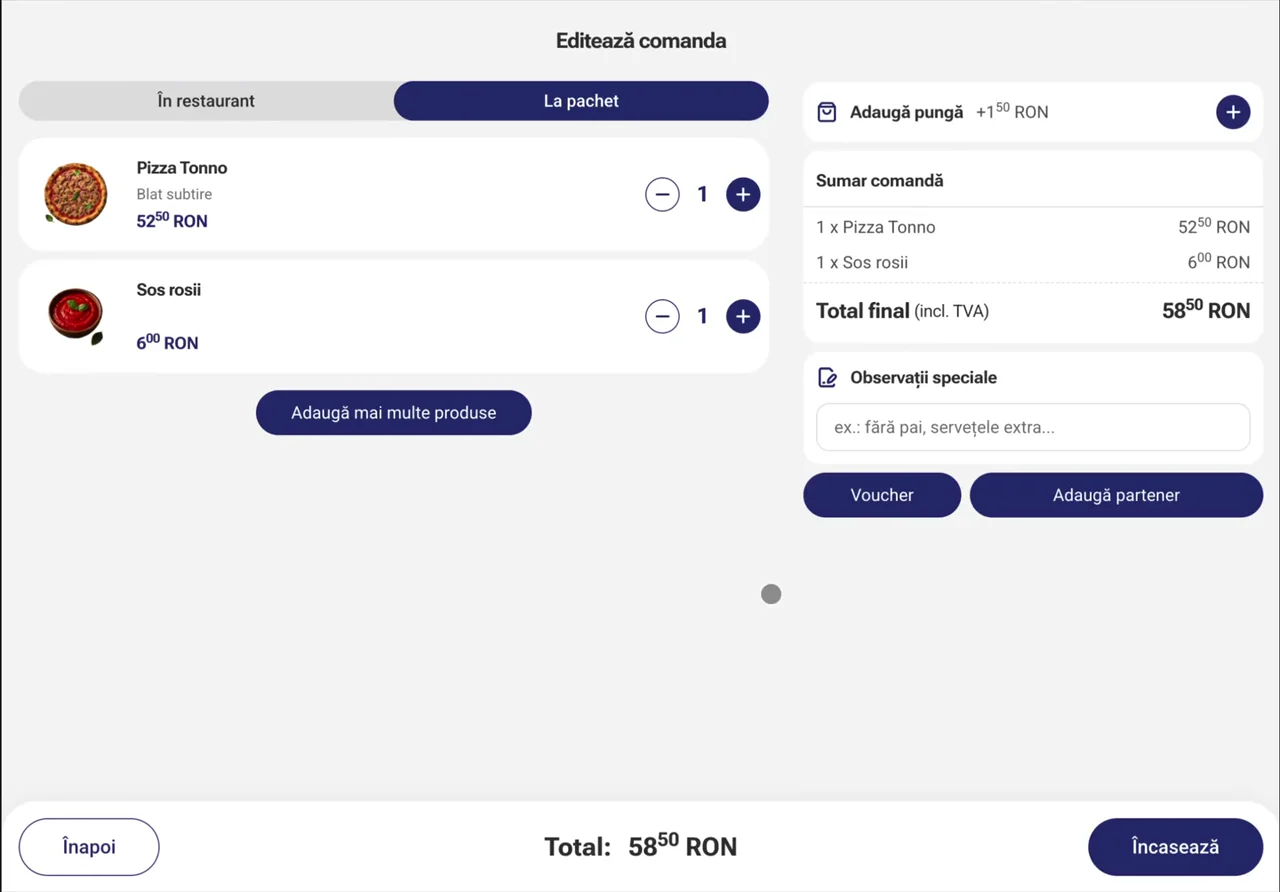
Select Take payment, choose a payment method available at the location and complete payment.
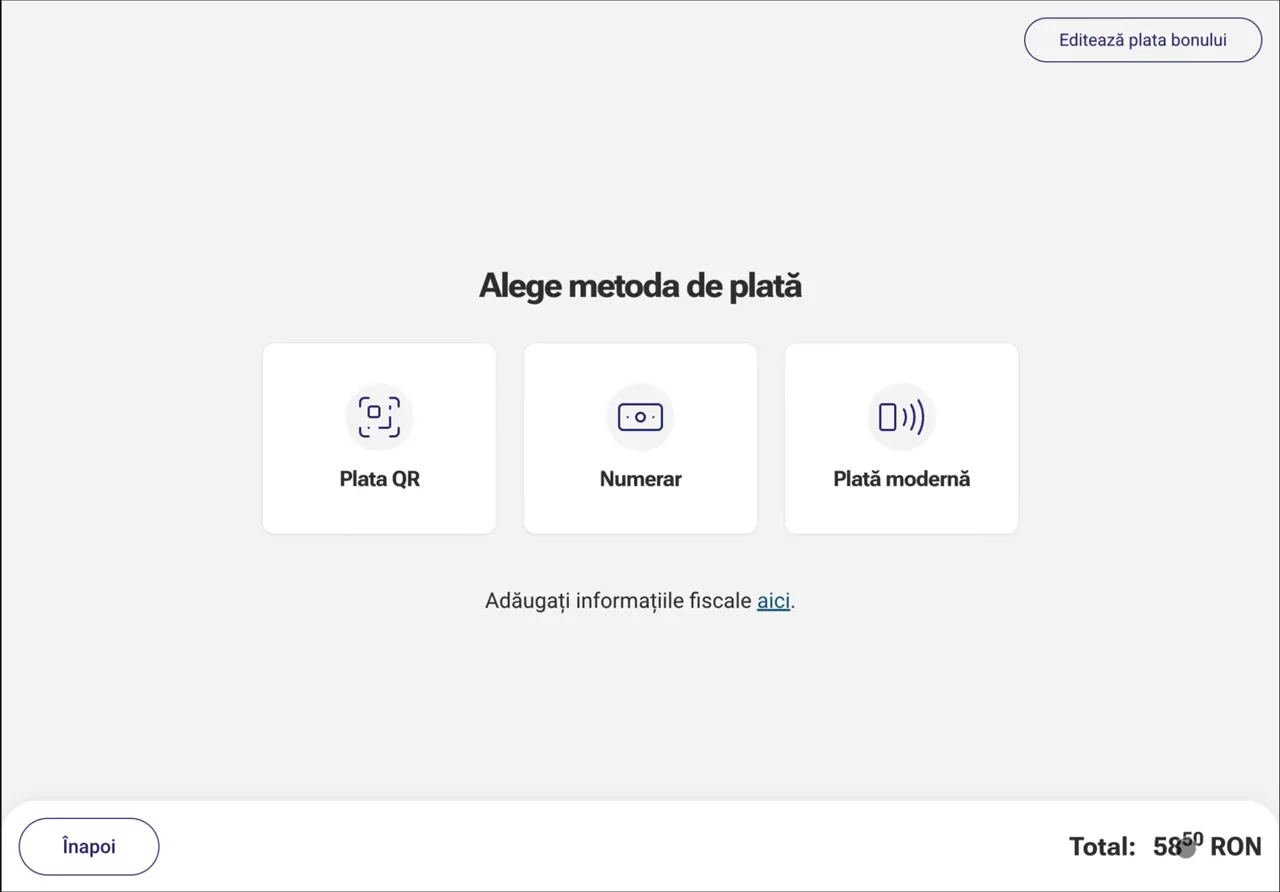
After payment, the order appears in Orders. The team moves it through Placed, In preparation, Ready for collection and Collected as it prepares and hands it over.
Customer Display
Connect a Customer Display to POS & Orders. Products, quantities and discounts update in real time, so guests can see the total before paying.
When enabled, guests can add a tip on Customer Display. Their choice is reflected in the order total.
Part of POS & Orders
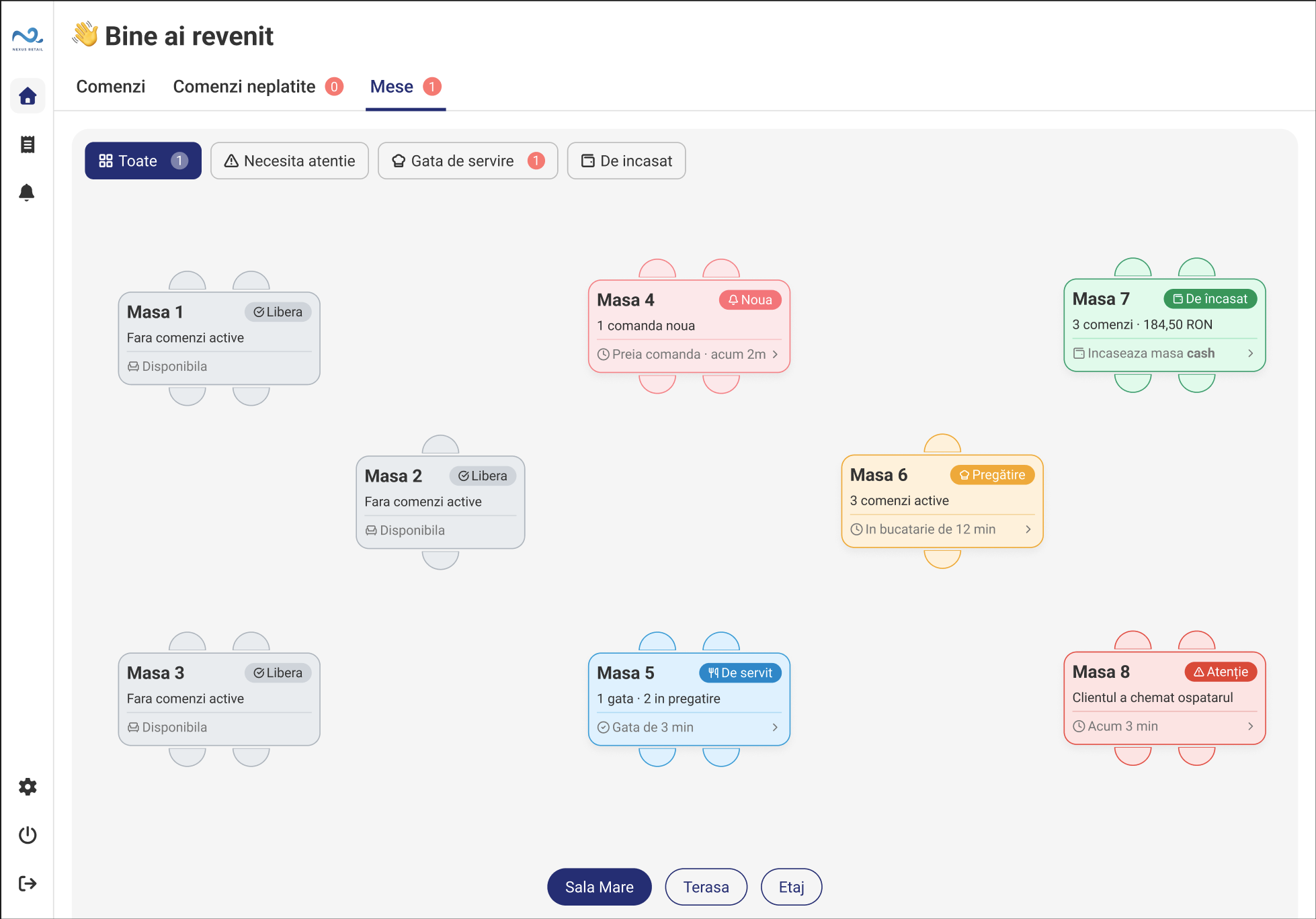
The administration app sets available modules and options. The Kitchen Display (KDS) can receive items to prepare while POS & Orders keeps the overall view.
POS & Orders FAQ
No. They are two views in POS & Orders: one for order progress and one for outstanding payments.
Yes. Operators can create orders in POS & Orders alongside those received automatically from connected channels.
After payment. Select the order in Unpaid orders and complete payment, then track it in Orders through preparation and collection.
Yes, when configured for the location. Items reach the preparation team while staff track orders in POS & Orders.
POS & Orders
In a demo, we show you how to receive orders, follow preparation and collect payments in POS & Orders.